
MediaToaster uses Telegram Bot API to publish content to your Telegram channels and groups. This guide will walk you through creating a bot, obtaining credentials, and connecting it to MediaToaster.
Before you start
- • You need a Telegram account
- • You must be an admin of the channel/group you want to post to
- • The process takes about 5-10 minutes
Create a Telegram Bot
Your bot, your rules
You only need to create a bot once. A single bot can be used for multiple channels and groups. You have full control over your bot and can manage it at any time through BotFather.
1.1. Open BotFather
BotFather is the official bot that manages all Telegram bots. Search for @BotFather in Telegram or click the link to open it.
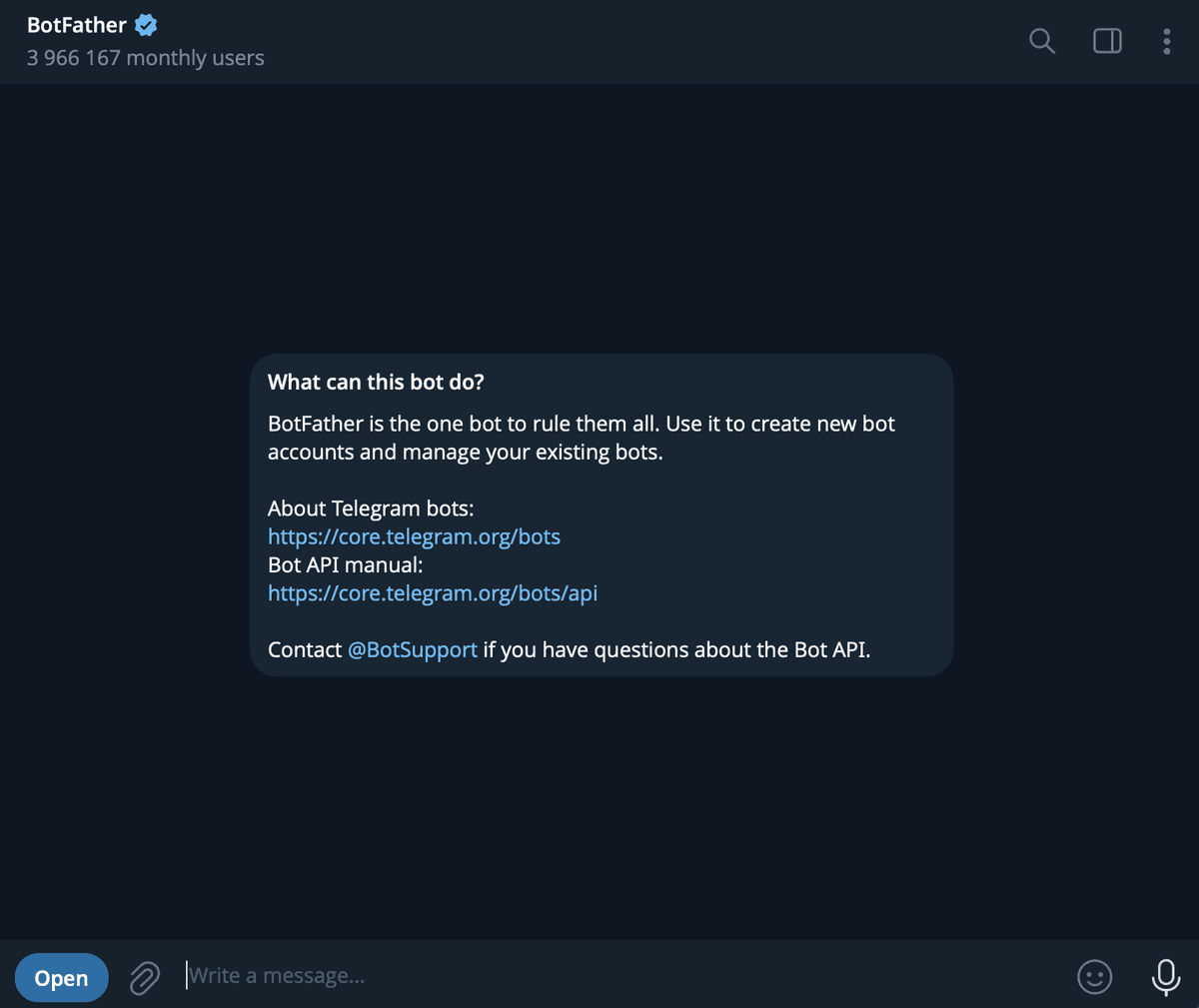
1.2. Create a New Bot
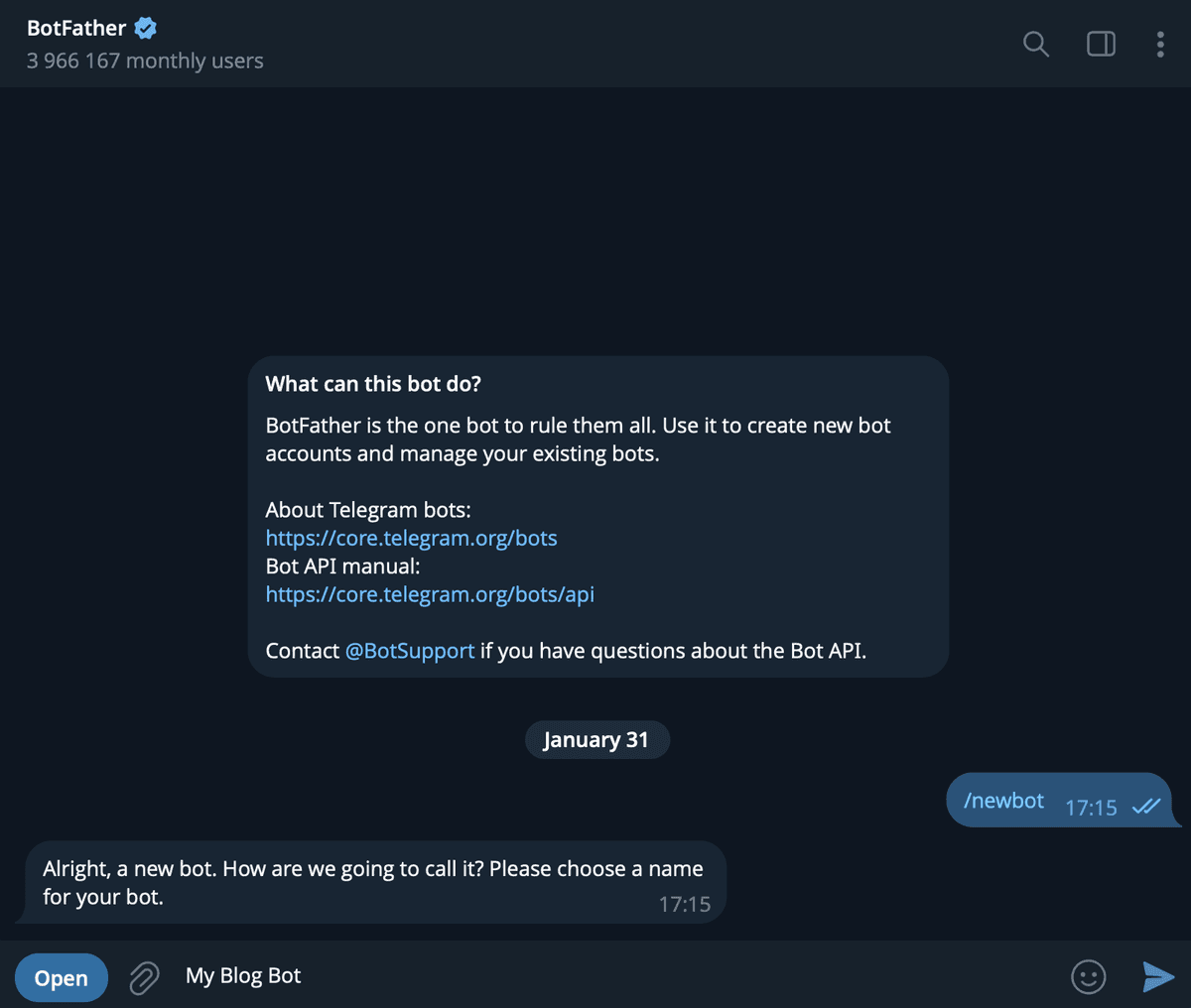
In the chat with BotFather, send the command:
1.3. Choose a Name
BotFather will ask you to choose a name for your bot. This is the display name users will see. For example:
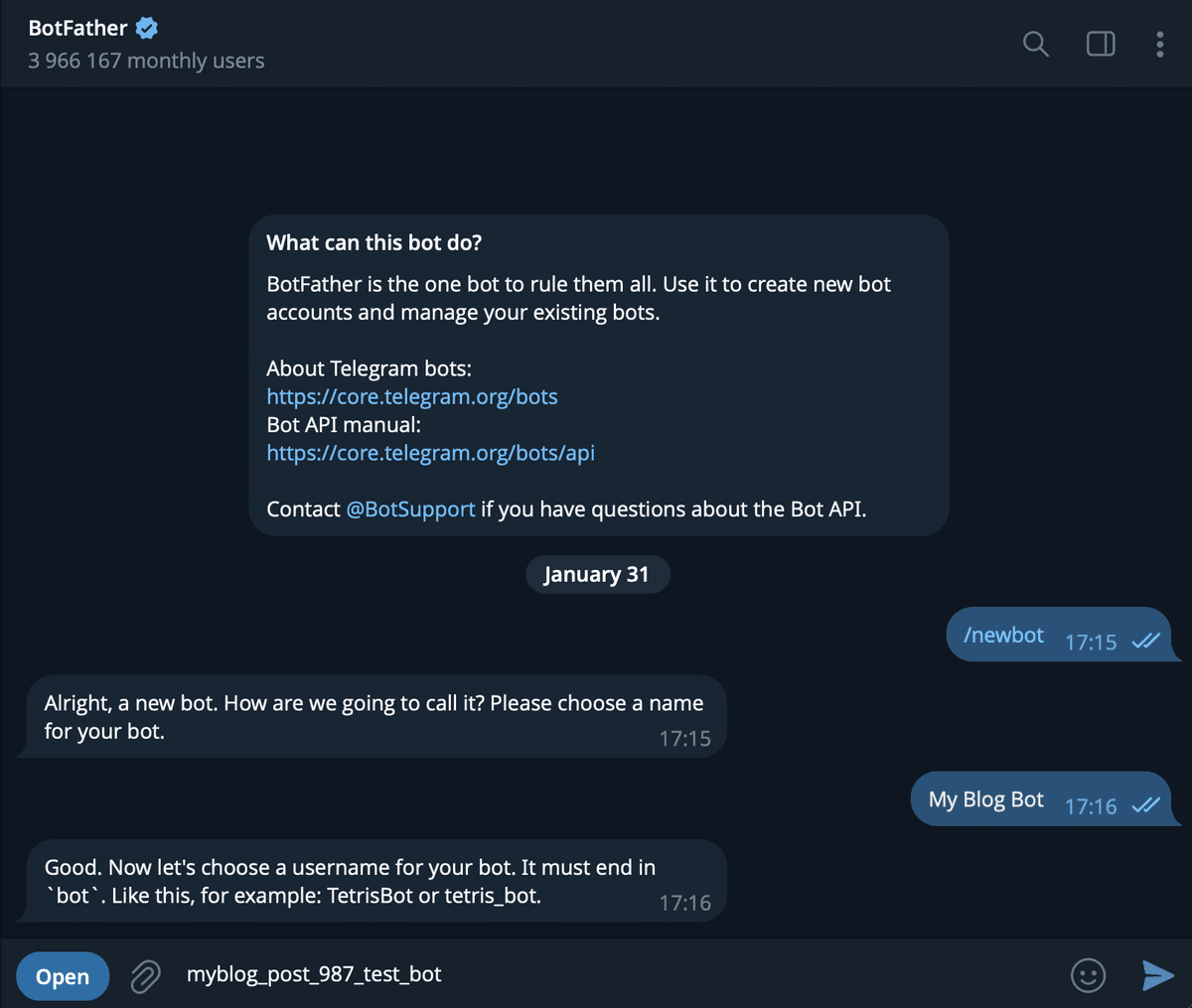
1.4. Choose a Username
Next, choose a username for your bot. It must end with bot. For example:
Note: The username must be unique across all Telegram bots. If taken, try adding numbers or underscores.
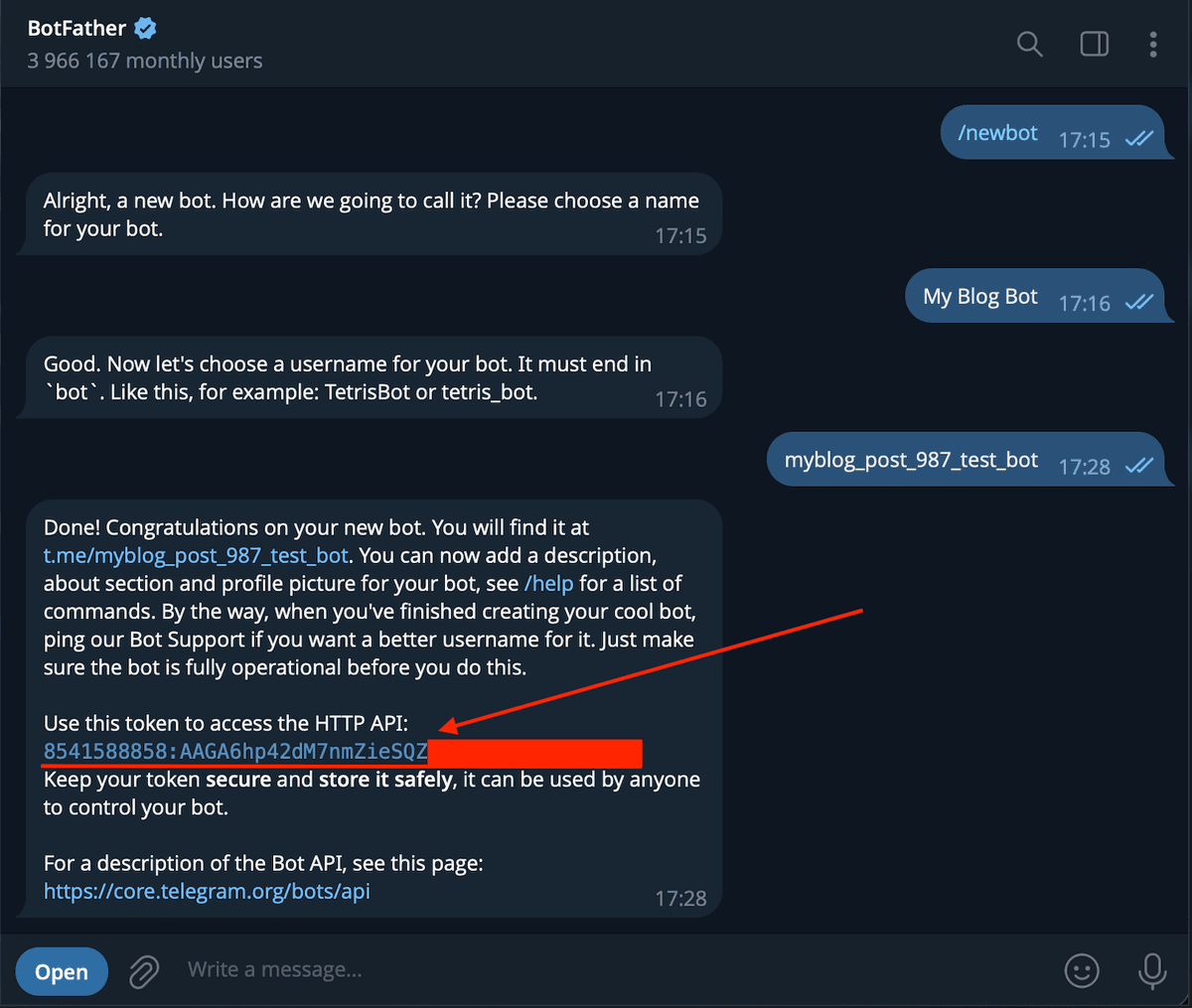
1.5. Copy Your Bot Token
BotFather will send you a message with your bot token. It looks like this:
⚠️ Important: Keep this token secret! Anyone with this token can control your bot.
Add Bot to Your Channel or Group
Choose which type you want to configure (click to expand)
Add Bot to MediaToaster
3.1. Navigate to Integrations
In MediaToaster, go to Your Project → Social Media
3.2. Click "Connect Telegram"
Click the Connect Platform button.
3.3. Choose Telegram
In the dialog that appears, choose Telegram and click on it.
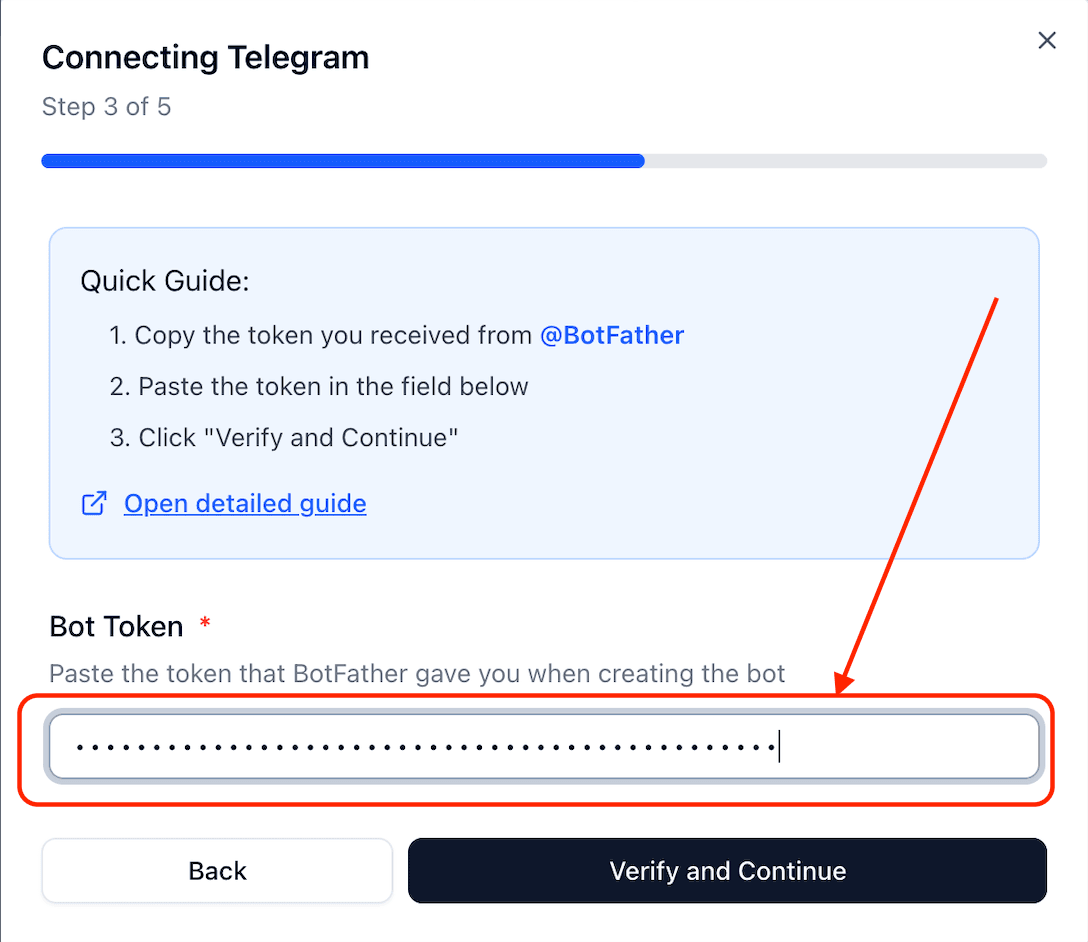
3.4. Paste Your Bot Token
In the dialog that appears, paste the bot token you copied from BotFather and click Verify and Continue.
3.5. Get the Channel or Group identifier
To connect your bot to a specific channel or group, you need its identifier. This can be either a @username or a unique chat ID.
Option 1: Using @username (recommended)
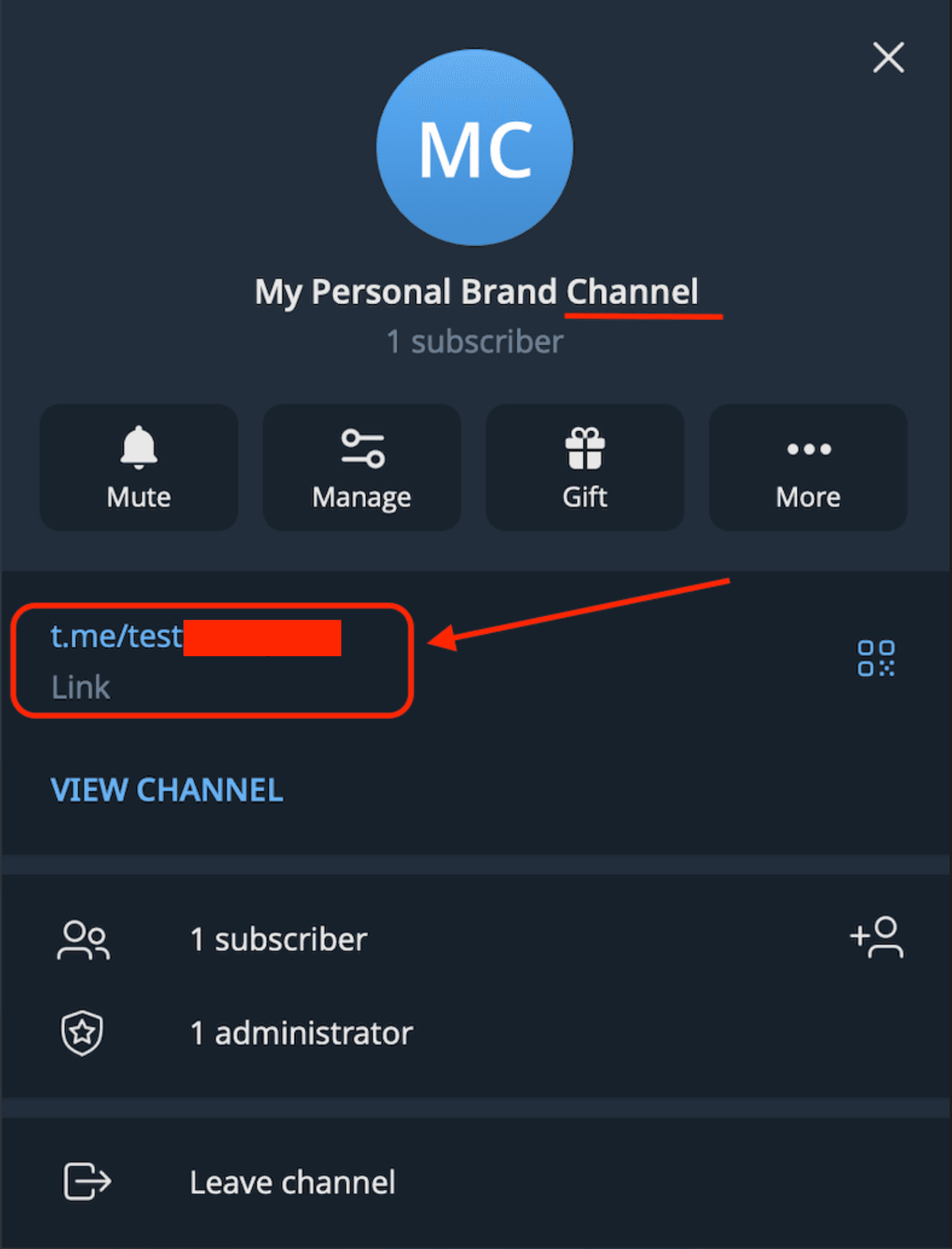
If your channel or group has a public username, you can use it directly (e.g., @mychannel).
How to find it: Open your channel/group in Telegram, tap the name at the top, and look for the username in the info section.
Option 2: Using Chat ID (for private channels/groups)
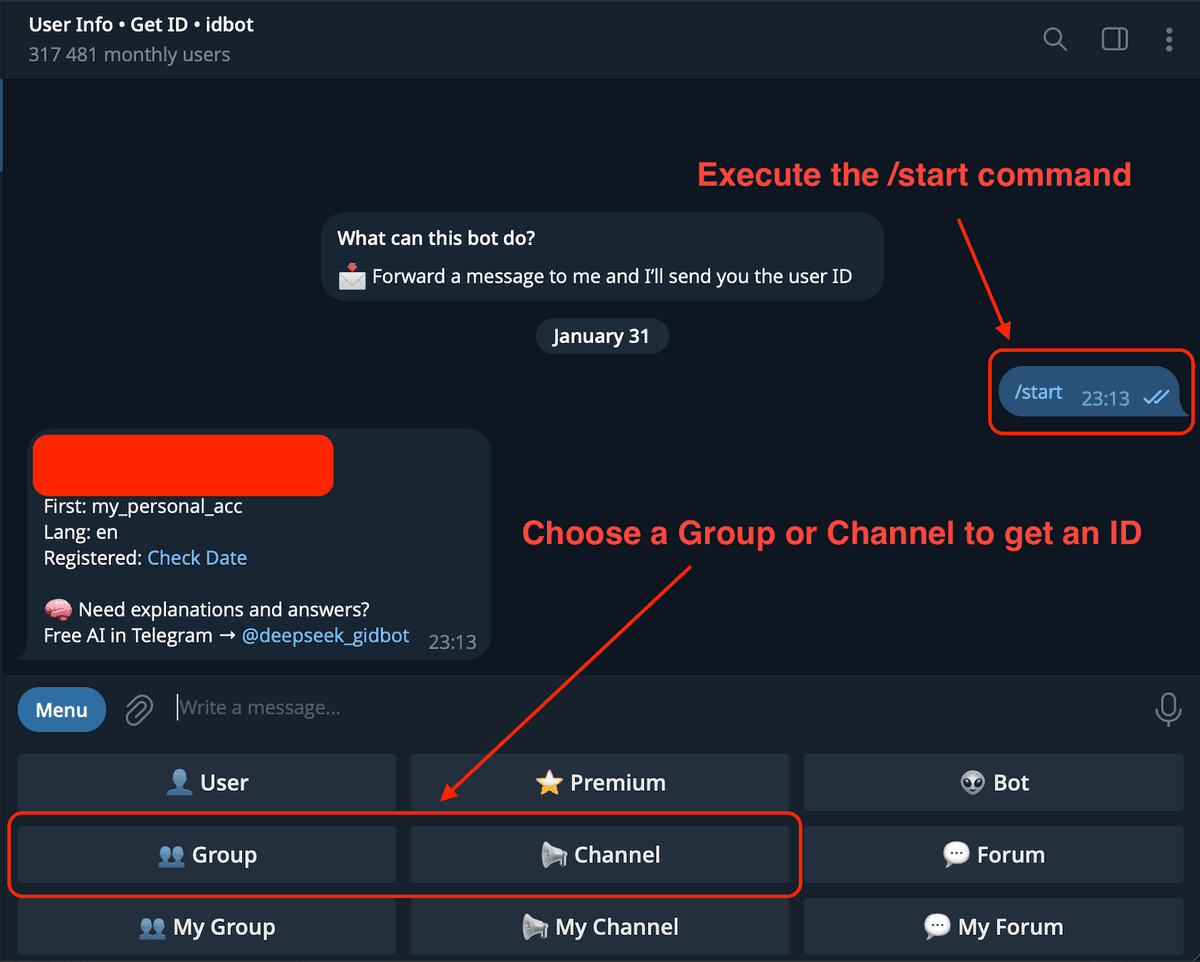
Private channels and groups don't have usernames, so you need to use their unique chat ID (e.g., -1001234567890).
How to find it:
Use a Telegram bot like @userinfobot. Add the bot to your channel/group, and it will display the chat ID.
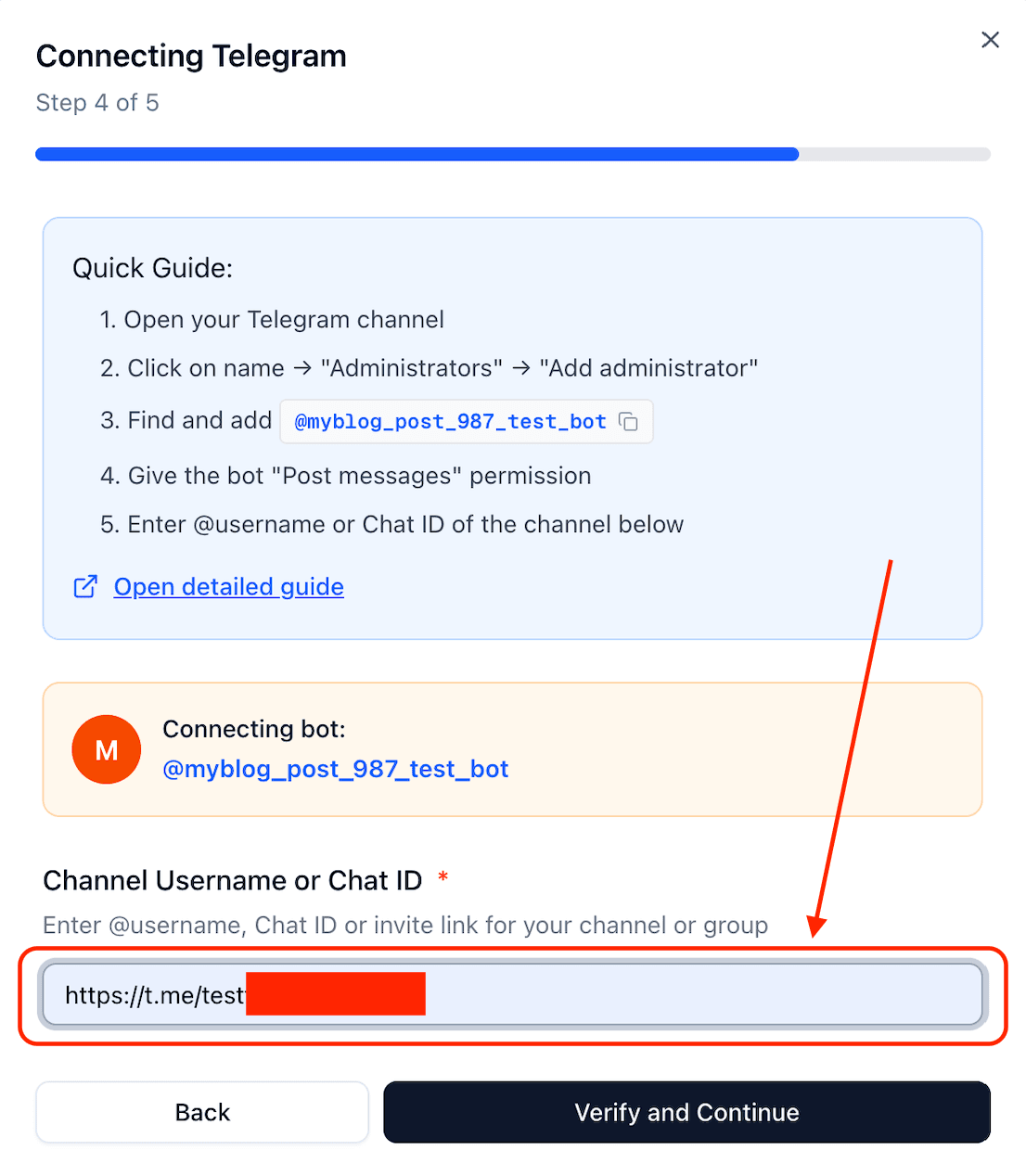
3.6. Provide the Channel or Group identifier
Provide the Channel or Group identifier. This can be either the @username of the channel/group (e.g., @mychannel) or the unique chat ID (e.g., -1001234567890). And press the Verify and Continue button.
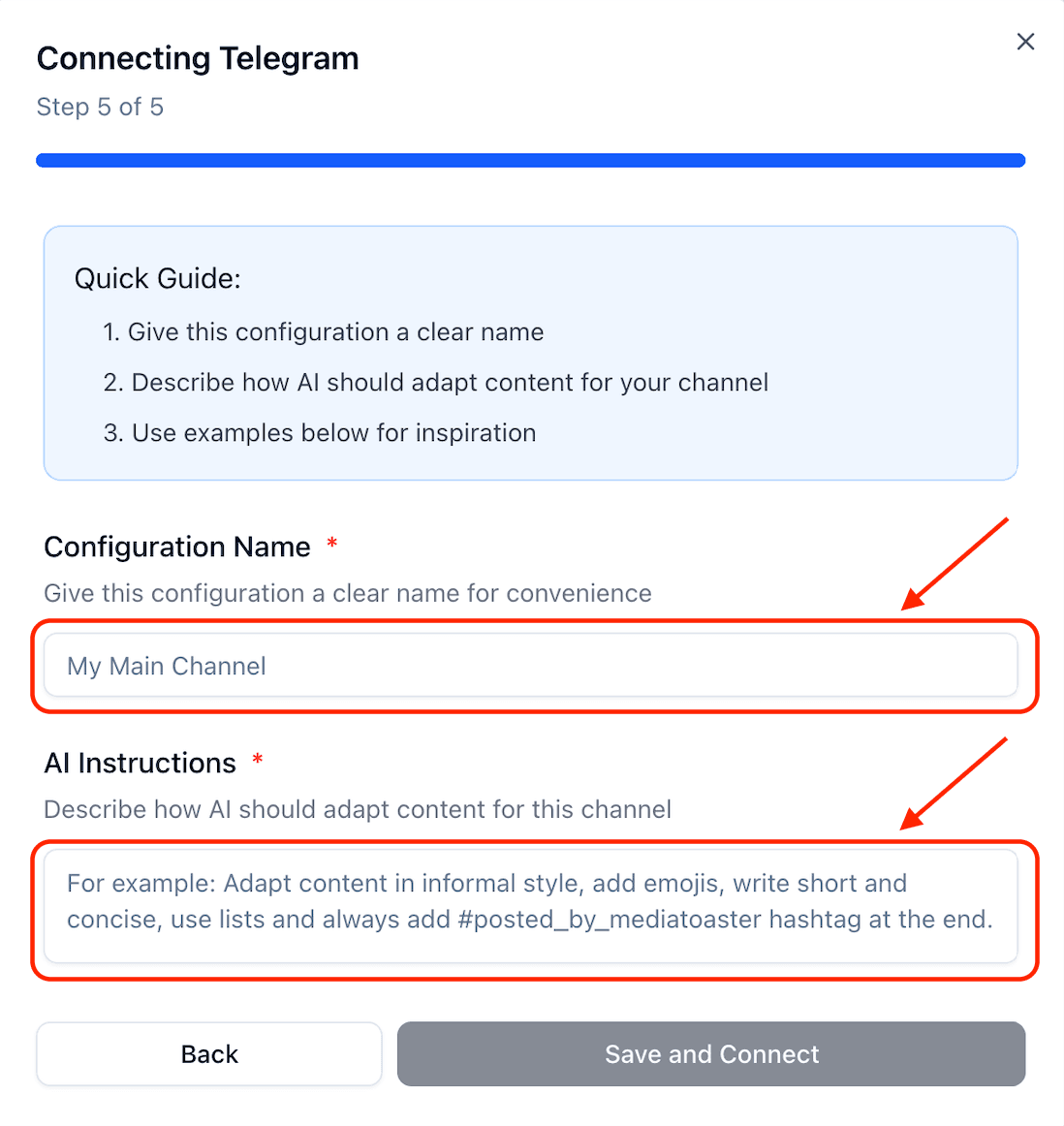
3.7. Provide a meaningful config name and AI mutator instructions
Give your configuration a descriptive name that will help you identify this integration later, and optionally add AI mutator instructions to customize content adaptation, then press the Save and Connect button.
Test Your Integration (Optional)
4.1. Create a Test Post
Create a simple test post in MediaToaster with your Telegram channel selected.
4.2. Publish or Schedule
You can either publish immediately or schedule for later to test the posting functionality.
4.3. Verify on Telegram
Check your Telegram channel to confirm the post appeared correctly.
Troubleshooting
❌ Bot token is invalid
Double-check that you copied the entire token from BotFather. Make sure there are no extra spaces or characters.
❌ Can't add bot to channel
Make sure you're an administrator of the channel. Only admins can add other admins (including bots).
❌ Post failed to publish
Check that the bot still has admin permissions in the channel. Verify your MediaToaster account has enough AI tokens if using AI features.
You're all set! 🎉
Your Telegram bot is now connected to MediaToaster. You can start creating and scheduling posts to your Telegram channels.
Go to Dashboard →Next Steps
Create Your First Project
Organize your content with projects
AI Content Adaptation
Let AI optimize content per platform
Schedule Posts
Plan your content calendar
Custom Instructions
Fine-tune AI for each platform
💡 Pro Tip
Use custom instructions for your Telegram channel to fine-tune how AI adapts your content. This ensures the best engagement for your Telegram audience while maintaining your brand voice.